Guides and How-tos
Step-by-step guides for the Inbox Spam Filter app in HubSpot—from Marketplace install through scoring settings and the Overview dashboard.
- Install and setup guide (Marketplace / OAuth / configure / use / uninstall)
- Configure spam threshold
- Set up daily digest
- Review filtered spam dashboard
- Manage billing and upgrade
Disconnect or Uninstall Inbox Spam Filter
How to disconnect or uninstall Inbox Spam Filter from HubSpot, and what happens to your CRM data, properties, and dashboard history.
Inbox Spam Filter Setup Guide
Install Inbox Spam Filter for HubSpot: connect OAuth, configure scoring, use the dashboard, disconnect, and uninstall—with data consequences.
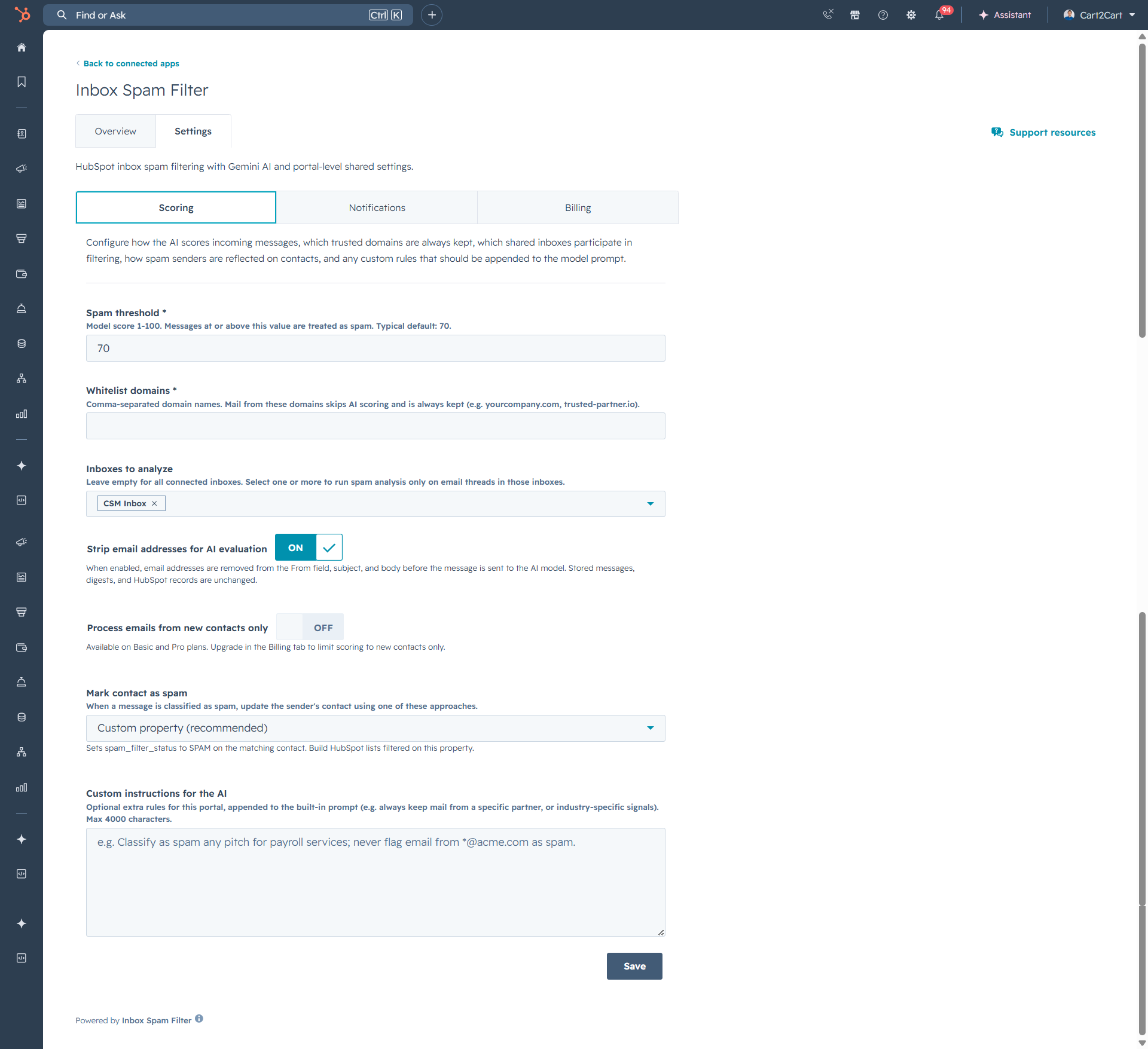
Configure the Spam Threshold
Set the spam threshold (1–100) in Inbox Spam Filter scoring settings. Messages at or above the threshold are treated as spam.
Whitelist Trusted Domains
Add trusted domains to the whitelist so emails from those senders skip AI scoring and are always kept.
Choose Which Inboxes to Analyze
Limit spam filtering to specific HubSpot shared inboxes, or analyze all connected inboxes when the field is left empty.
Write Custom AI Instructions
Add portal-level custom instructions (up to 4,000 characters) to guide Gemini AI spam classification for your business.
Enable Strip Email Addresses for AI Evaluation
Turn on Strip email addresses for AI evaluation to remove addresses from From, subject, and body before Gemini AI scoring.
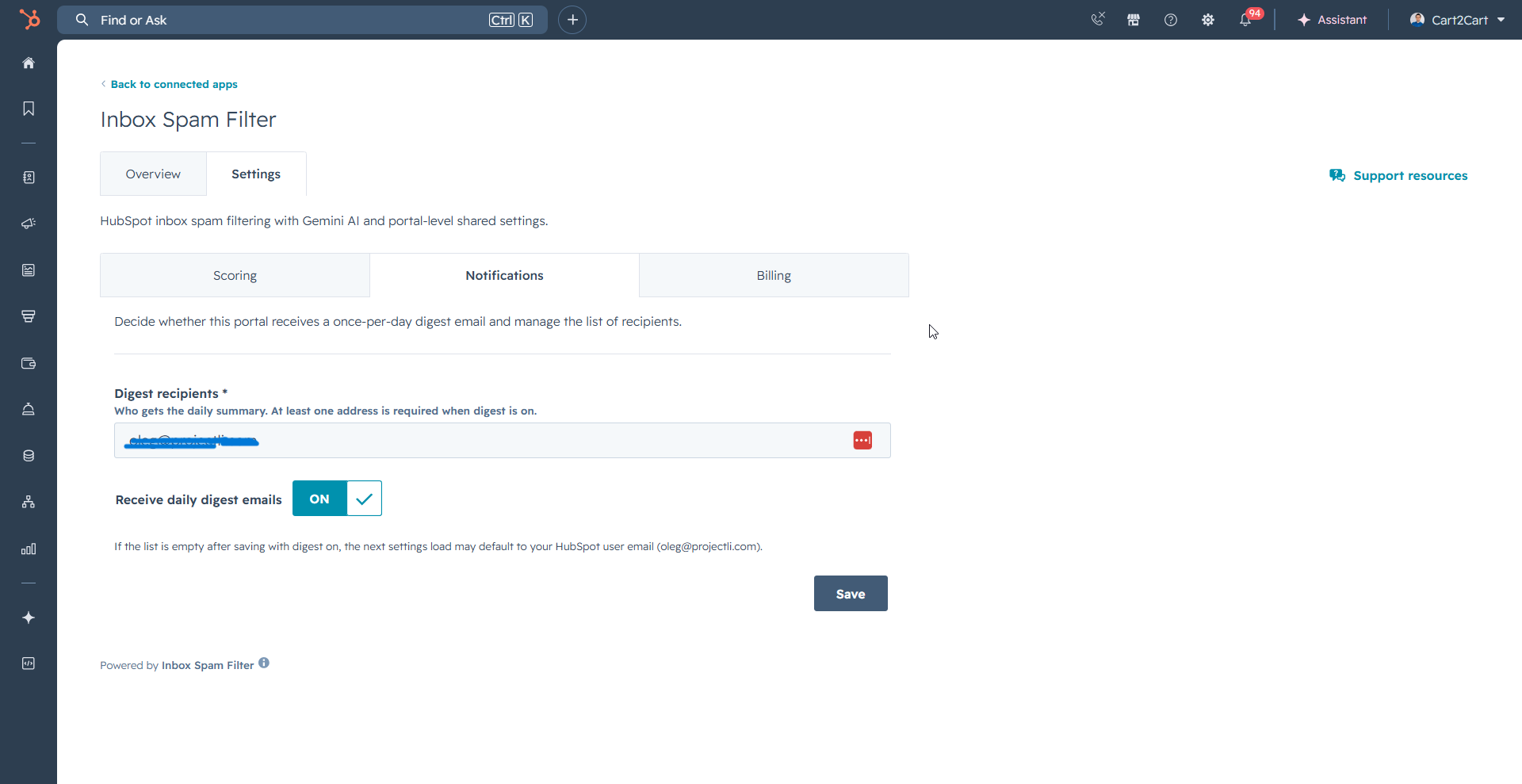
Set Up Daily Digest Emails
Enable a once-per-day digest email and manage recipient addresses for spam filter activity in your HubSpot portal.
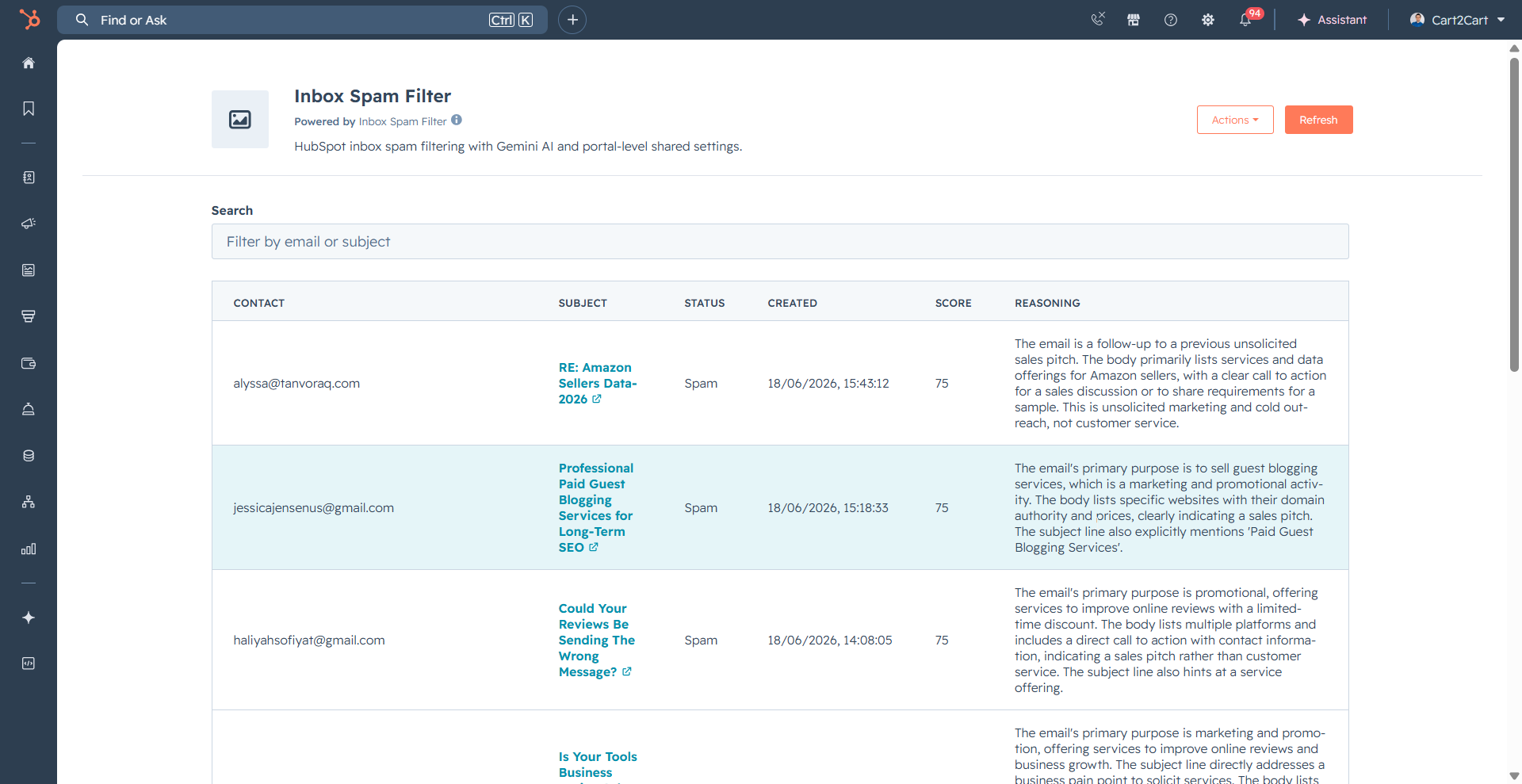
Review Filtered Spam on the Dashboard
Use the Overview dashboard to search, filter, and review spam flagged by Inbox Spam Filter with scores and AI reasoning.
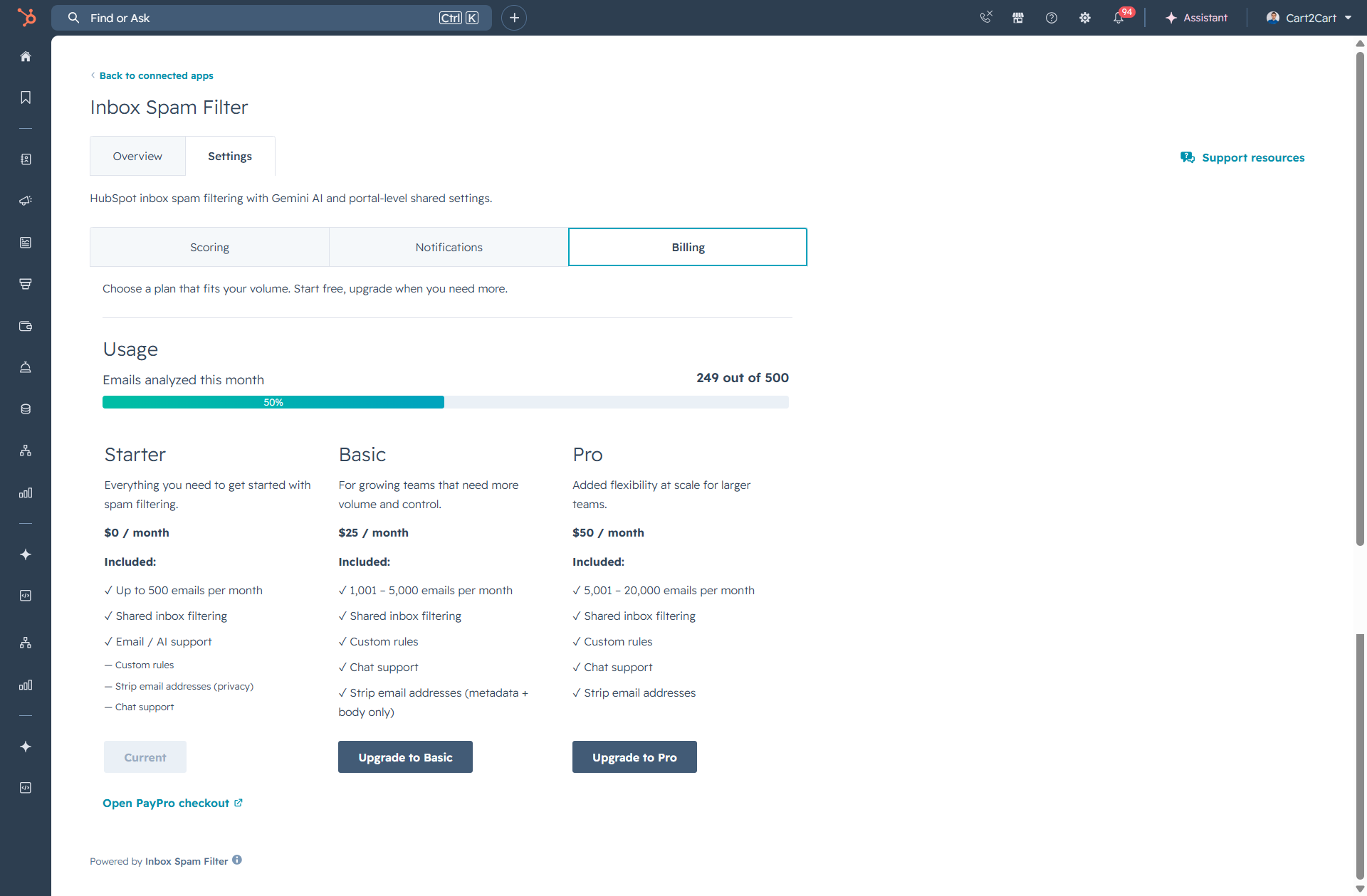
Manage Billing and Upgrade Your Plan
View monthly email usage, compare Starter, Basic, and Pro plans, and upgrade via PayPro checkout in Inbox Spam Filter billing settings.
 Install on HubSpot